%20--%3E%3Cmetadata%20xmlns%3Ardf%3D%22http%3A%2F%2Fwww.w3.org%2F1999%2F02%2F22-rdf-syntax-ns%23%22%20xmlns%3Axsi%3D%22http%3A%2F%2Fwww.w3.org%2F2001%2FXMLSchema-instance%22%20xmlns%3Adc%3D%22http%3A%2F%2Fpurl.org%2Fdc%2Felements%2F1.1%2F%22%20xmlns%3Adcterms%3D%22http%3A%2F%2Fpurl.org%2Fdc%2Fterms%2F%22%3E%3Crdf%3ARDF%3E%3Crdf%3ADescription%3E%3Cdc%3Atitle%3ELoops%3C%2Fdc%3Atitle%3E%3Cdc%3Acreator%3EDiceBear%3C%2Fdc%3Acreator%3E%3Cdc%3Asource%20xsi%3Atype%3D%22dcterms%3AURI%22%3Ehttps%3A%2F%2Fwww.dicebear.com%3C%2Fdc%3Asource%3E%3Cdcterms%3Alicense%20xsi%3Atype%3D%22dcterms%3AURI%22%3Ehttps%3A%2F%2Fcreativecommons.org%2Fpublicdomain%2Fzero%2F1.0%2F%3C%2Fdcterms%3Alicense%3E%3Cdc%3Arights%3E%E2%80%9CLoops%E2%80%9D%20(https%3A%2F%2Fwww.dicebear.com)%20by%20%E2%80%9CDiceBear%E2%80%9D%2C%20licensed%20under%20%E2%80%9CCC0%201.0%E2%80%9D%20(https%3A%2F%2Fcreativecommons.org%2Fpublicdomain%2Fzero%2F1.0%2F)%3C%2Fdc%3Arights%3E%3C%2Frdf%3ADescription%3E%3C%2Frdf%3ARDF%3E%3C%2Fmetadata%3E%3Cdefs%3E%3Cg%20id%3D%22tile-default-96238ec8%22%3E%3Cpath%20d%3D%22M0%2014A14%2014%200%200%201%2014%200m0%2028a14%2014%200%200%200%2014-14%22%20stroke-width%3D%228%22%20stroke%3D%22%23ffffff%22%2F%3E%3C%2Fg%3E%3Cg%20id%3D%22pattern-default-96238ec8%22%3E%3Cg%20style%3D%22mix-blend-mode%3Aoverlay%22%3E%3Cg%20class%3D%22dblo-g1%22%3E%3Cuse%20transform%3D%22translate(4%204)%20rotate(90%2C%2014%2C%2014)%22%20href%3D%22%23tile-default-96238ec8%22%2F%3E%3C%2Fg%3E%3Cg%20class%3D%22dblo-g2%22%3E%3Cuse%20transform%3D%22translate(32%204)%22%20href%3D%22%23tile-default-96238ec8%22%2F%3E%3C%2Fg%3E%3Cg%20class%3D%22dblo-g3%22%3E%3Cuse%20transform%3D%22translate(60%204)%22%20href%3D%22%23tile-default-96238ec8%22%2F%3E%3C%2Fg%3E%3Cg%20class%3D%22dblo-g1%22%3E%3Cuse%20transform%3D%22translate(4%2032)%22%20href%3D%22%23tile-default-96238ec8%22%2F%3E%3C%2Fg%3E%3Cg%20class%3D%22dblo-g2%22%3E%3Cuse%20transform%3D%22translate(32%2032)%20rotate(90%2C%2014%2C%2014)%22%20href%3D%22%23tile-default-96238ec8%22%2F%3E%3C%2Fg%3E%3Cg%20class%3D%22dblo-g3%22%3E%3Cuse%20transform%3D%22translate(60%2032)%22%20href%3D%22%23tile-default-96238ec8%22%2F%3E%3C%2Fg%3E%3Cg%20class%3D%22dblo-g1%22%3E%3Cuse%20transform%3D%22translate(4%2060)%20rotate(90%2C%2014%2C%2014)%22%20href%3D%22%23tile-default-96238ec8%22%2F%3E%3C%2Fg%3E%3Cg%20class%3D%22dblo-g2%22%3E%3Cuse%20transform%3D%22translate(32%2060)%22%20href%3D%22%23tile-default-96238ec8%22%2F%3E%3C%2Fg%3E%3Cg%20class%3D%22dblo-g3%22%3E%3Cuse%20transform%3D%22translate(60%2060)%20rotate(90%2C%2014%2C%2014)%22%20href%3D%22%23tile-default-96238ec8%22%2F%3E%3C%2Fg%3E%3C%2Fg%3E%3Cg%20opacity%3D%22.5%22%3E%3Cg%20class%3D%22dblo-g1%22%3E%3Cuse%20transform%3D%22translate(4%204)%20rotate(90%2C%2014%2C%2014)%22%20href%3D%22%23tile-default-96238ec8%22%2F%3E%3C%2Fg%3E%3Cg%20class%3D%22dblo-g2%22%3E%3Cuse%20transform%3D%22translate(32%204)%22%20href%3D%22%23tile-default-96238ec8%22%2F%3E%3C%2Fg%3E%3Cg%20class%3D%22dblo-g3%22%3E%3Cuse%20transform%3D%22translate(60%204)%22%20href%3D%22%23tile-default-96238ec8%22%2F%3E%3C%2Fg%3E%3Cg%20class%3D%22dblo-g1%22%3E%3Cuse%20transform%3D%22translate(4%2032)%22%20href%3D%22%23tile-default-96238ec8%22%2F%3E%3C%2Fg%3E%3Cg%20class%3D%22dblo-g2%22%3E%3Cuse%20transform%3D%22translate(32%2032)%20rotate(90%2C%2014%2C%2014)%22%20href%3D%22%23tile-default-96238ec8%22%2F%3E%3C%2Fg%3E%3Cg%20class%3D%22dblo-g3%22%3E%3Cuse%20transform%3D%22translate(60%2032)%22%20href%3D%22%23tile-default-96238ec8%22%2F%3E%3C%2Fg%3E%3Cg%20class%3D%22dblo-g1%22%3E%3Cuse%20transform%3D%22translate(4%2060)%20rotate(90%2C%2014%2C%2014)%22%20href%3D%22%23tile-default-96238ec8%22%2F%3E%3C%2Fg%3E%3Cg%20class%3D%22dblo-g2%22%3E%3Cuse%20transform%3D%22translate(32%2060)%22%20href%3D%22%23tile-default-96238ec8%22%2F%3E%3C%2Fg%3E%3Cg%20class%3D%22dblo-g3%22%3E%3Cuse%20transform%3D%22translate(60%2060)%20rotate(90%2C%2014%2C%2014)%22%20href%3D%22%23tile-default-96238ec8%22%2F%3E%3C%2Fg%3E%3C%2Fg%3E%3C%2Fg%3E%3Cg%20id%3D%22animation-none-96238ec8%22%3E%3C%2Fg%3E%3CclipPath%20id%3D%22clip-96238ec8%22%3E%3Crect%20width%3D%22100%22%20height%3D%22100%22%20rx%3D%220%22%20ry%3D%220%22%2F%3E%3C%2FclipPath%3E%3C%2Fdefs%3E%3Cg%20clip-path%3D%22url(%23clip-96238ec8)%22%3E%3Crect%20width%3D%22100%22%20height%3D%22100%22%20fill%3D%22%230369a1%22%2F%3E%3Cuse%20transform%3D%22translate(4%204)%22%20href%3D%22%23pattern-default-96238ec8%22%2F%3E%3Cuse%20href%3D%22%23animation-none-96238ec8%22%2F%3E%3C%2Fg%3E%3C%2Fsvg%3E)
%20--%3E%3Cmetadata%20xmlns%3Ardf%3D%22http%3A%2F%2Fwww.w3.org%2F1999%2F02%2F22-rdf-syntax-ns%23%22%20xmlns%3Axsi%3D%22http%3A%2F%2Fwww.w3.org%2F2001%2FXMLSchema-instance%22%20xmlns%3Adc%3D%22http%3A%2F%2Fpurl.org%2Fdc%2Felements%2F1.1%2F%22%20xmlns%3Adcterms%3D%22http%3A%2F%2Fpurl.org%2Fdc%2Fterms%2F%22%3E%3Crdf%3ARDF%3E%3Crdf%3ADescription%3E%3Cdc%3Atitle%3EGlass%3C%2Fdc%3Atitle%3E%3Cdc%3Acreator%3EDiceBear%3C%2Fdc%3Acreator%3E%3Cdc%3Asource%20xsi%3Atype%3D%22dcterms%3AURI%22%3Ehttps%3A%2F%2Fwww.dicebear.com%3C%2Fdc%3Asource%3E%3Cdcterms%3Alicense%20xsi%3Atype%3D%22dcterms%3AURI%22%3Ehttps%3A%2F%2Fcreativecommons.org%2Fpublicdomain%2Fzero%2F1.0%2F%3C%2Fdcterms%3Alicense%3E%3Cdc%3Arights%3E%E2%80%9CGlass%E2%80%9D%20(https%3A%2F%2Fwww.dicebear.com)%20by%20%E2%80%9CDiceBear%E2%80%9D%2C%20licensed%20under%20%E2%80%9CCC0%201.0%E2%80%9D%20(https%3A%2F%2Fcreativecommons.org%2Fpublicdomain%2Fzero%2F1.0%2F)%3C%2Fdc%3Arights%3E%3C%2Frdf%3ADescription%3E%3C%2Frdf%3ARDF%3E%3C%2Fmetadata%3E%3Cdefs%3E%3Cg%20id%3D%22shape-a-48c0bbc7%22%3E%3Cpath%20d%3D%22M42.6%20147.4H0L48%201.9h54l48%20145.5h-42.7L75.5%2042h-1.1zm-8-57.4h80.1v29.6h-80z%22%20fill%3D%22white%22%2F%3E%3C%2Fg%3E%3Cg%20id%3D%22shape-t-48c0bbc7%22%3E%3Cpath%20d%3D%22M11.7%2033.8V1.9h126.5v31.9H94.4v113.6h-39V33.8z%22%20fill%3D%22white%22%2F%3E%3C%2Fg%3E%3Cfilter%20id%3D%22dicebearGlass-a%22%20x%3D%22-57%22%20y%3D%22-56.4%22%20width%3D%22214%22%20height%3D%22213.4%22%20filterUnits%3D%22userSpaceOnUse%22%20color-interpolation-filters%3D%22sRGB%22%3E%3CfeFlood%20flood-opacity%3D%220%22%20result%3D%22r0%22%2F%3E%3CfeBlend%20in%3D%22SourceGraphic%22%20in2%3D%22r0%22%20result%3D%22r1%22%2F%3E%3CfeGaussianBlur%20stdDeviation%3D%2216%22%20result%3D%22r2%22%2F%3E%3C%2Ffilter%3E%3Cfilter%20id%3D%22dicebearGlass-b%22%20x%3D%22-57%22%20y%3D%22-56.4%22%20width%3D%22214%22%20height%3D%22213.4%22%20filterUnits%3D%22userSpaceOnUse%22%20color-interpolation-filters%3D%22sRGB%22%3E%3CfeFlood%20flood-opacity%3D%220%22%20result%3D%22r0%22%2F%3E%3CfeBlend%20in%3D%22SourceGraphic%22%20in2%3D%22r0%22%20result%3D%22r1%22%2F%3E%3CfeGaussianBlur%20stdDeviation%3D%2216%22%20result%3D%22r2%22%2F%3E%3C%2Ffilter%3E%3Cg%20id%3D%22animation-none-48c0bbc7%22%3E%3C%2Fg%3E%3CclipPath%20id%3D%22clip-48c0bbc7%22%3E%3Crect%20width%3D%22100%22%20height%3D%22100%22%20rx%3D%220%22%20ry%3D%220%22%2F%3E%3C%2FclipPath%3E%3C%2Fdefs%3E%3Cg%20clip-path%3D%22url(%23clip-48c0bbc7)%22%3E%3Crect%20width%3D%22100%22%20height%3D%22100%22%20fill%3D%22%23eb47eb%22%2F%3E%3Cg%20style%3D%22mix-blend-mode%3Ascreen%22%20opacity%3D%22.6%22%20filter%3D%22url(%23dicebearGlass-a)%22%3E%3Cg%20class%3D%22dbgl-p2%22%3E%3Cuse%20transform%3D%22translate(-25%20-24.4)%20translate(-71.78475%2C%20-18.06739)%20rotate(-146.2029%2C%2075%2C%2074.7)%22%20href%3D%22%23shape-a-48c0bbc7%22%2F%3E%3C%2Fg%3E%3C%2Fg%3E%3Cg%20style%3D%22mix-blend-mode%3Ascreen%22%20opacity%3D%22.6%22%20filter%3D%22url(%23dicebearGlass-b)%22%3E%3Cg%20class%3D%22dbgl-p1%22%3E%3Cuse%20transform%3D%22translate(-25%20-24.4)%20translate(6.609%2C%20-64.75623)%20rotate(-7.3182%2C%2075%2C%2074.7)%22%20href%3D%22%23shape-t-48c0bbc7%22%2F%3E%3C%2Fg%3E%3C%2Fg%3E%3Cuse%20href%3D%22%23animation-none-48c0bbc7%22%2F%3E%3C%2Fg%3E%3C%2Fsvg%3E)
ERPNext Legal E-Billing Export (LEDES 1998B)
User Guide and Functional Documentation | Version 1.0
This guide explains how to prepare ERPNext records for legal e-billing, generate a LEDES 1998B-compatible text file from a Sales Invoice, and check the file before sending it to a client's legal e-billing platform.
The examples in this guide use sample records and identifiers. Replace them with values approved by your client or receiving platform.
1. What does the app do?
The ERPNext Legal E-Billing Export app adds a legal e-billing download action to the Sales Invoice. It collects the required information from ERPNext master data, the invoice header, and invoice item rows and produces a pipe-delimited .txt file in the documented LEDES 1998B field order.
The generated file contains 24 fields for each billing row. Invoice-level data, such as the invoice number and total, repeats on the billing rows so that each line can be understood on its own.
Important: Downloading the file is not the same as submitting or receiving acceptance from an external e-billing portal. Review the file and follow the recipient's submission instructions.
2. End-to-end workflow
Follow this sequence each time you prepare a legal e-billing export:
- Set up master records: Enter the client ID in Customer, law-firm ID in Company, timekeeper details in Employee, and task/activity codes in Item.
- Prepare the Sales Invoice header: Select the customer and company, and complete the posting date, matter references, billing period, and invoice description.
- Prepare billing lines: Add items, quantities, rates, descriptions, line dates, LEDES types, and any required expense or adjustment information.
- Review invoice amounts: Check each line amount and the overall invoice Total in ERPNext.
- Download the file: From the Sales Invoice, choose Export > Download LEDES.txt.
- Validate the output: Open the downloaded text file and compare its identifiers, dates, amounts, and billing lines with ERPNext before submitting it to the receiving portal.
3. First-time setup: Where each LEDES value comes from
Before creating the first export, confirm that the relevant fields have been entered on the following ERPNext screens. Each setup section includes an ERPNext screenshot showing the corresponding screen or controls.
3.1 Customer master: CLIENT_ID
Navigate to: Selling > Customer > Open the relevant customer.
Enter the client-specific identifier in LEDES Client ID and save the Customer record. The Customer selected in the Sales Invoice determines which client record supplies the exported ID.
| LEDES field | ERPNext source | Example |
|---|---|---|
| CLIENT_ID | Customer > LEDES Client ID | ABC-001 |
Example: If the Customer is ABC Trading Company and the client has assigned the billing ID ABC-001, enter ABC-001 in the LEDES Client ID field. Do not assume the Customer Name is the same as the external client ID.
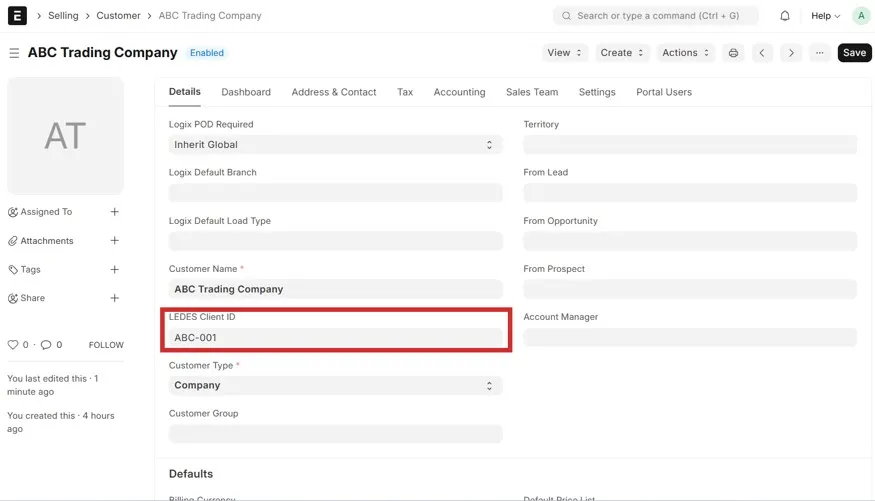 Customer Master – LEDES Client ID
3.2 Company Master - LEDES Law Firm I
Navigate to: Company > Open the billing company
Maintain the law-firm identifier on the ERPNext Company record. The exporter uses this value to identify the billing firm.
| LEDES field | ERPNext source / meaning | Sample value |
|---|---|---|
| LAW_FIRM_ID | Company > LEDES Law Firm ID | LAW-001 |
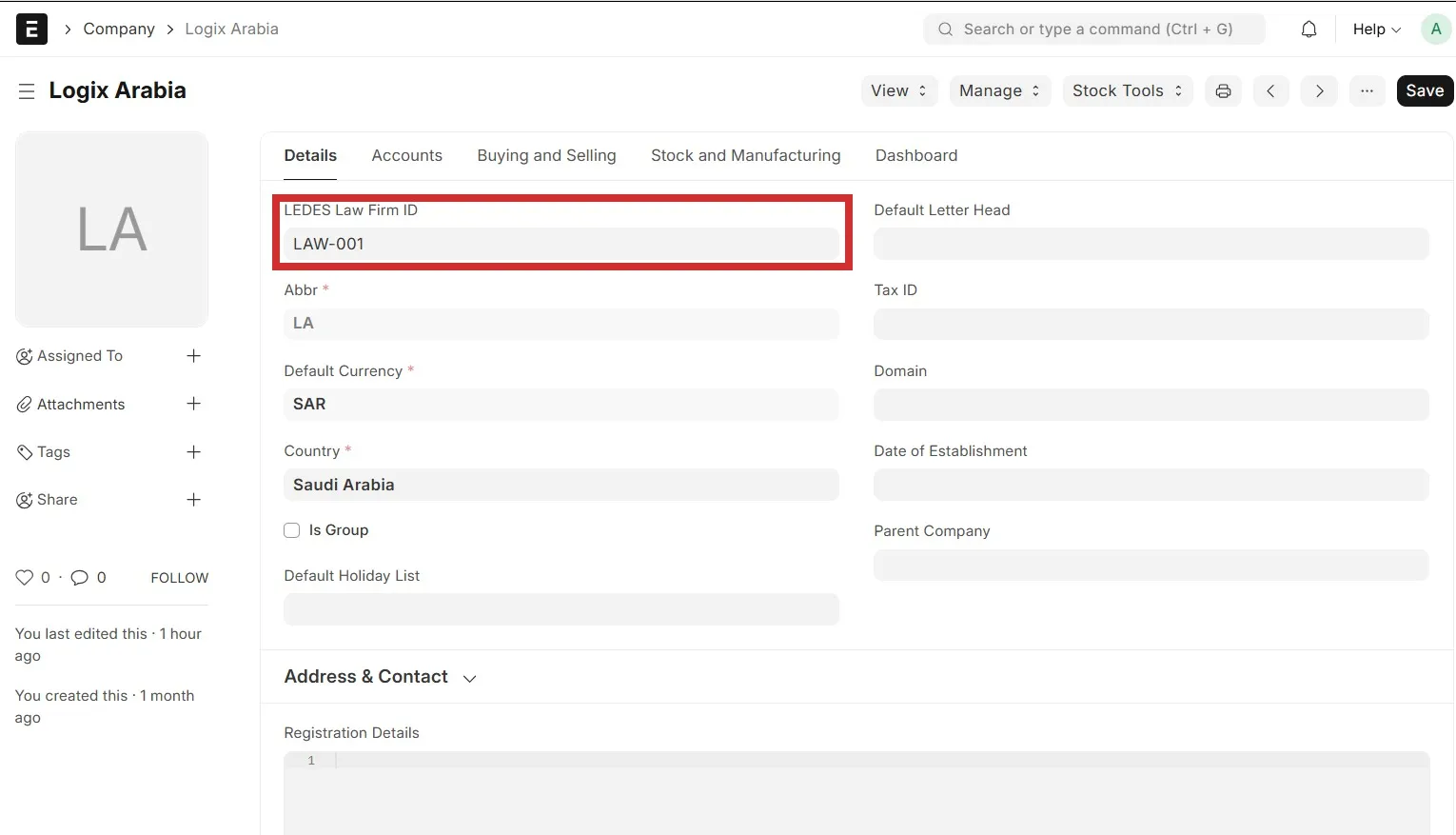 Company master - LEDES Law Firm ID
3.3 Employee Master - Timekeeper Information
Navigate to: Employee > Open the relevant employee
Timekeeper information identifies the professional associated with a billing line. The sample employee record stores the Timekeeper ID and Timekeeper Classification, while the employee name supplies the Timekeeper Name used in the export.
| LEDES field | ERPNext source / meaning | Sample value |
|---|---|---|
| TIMEKEEPER_ID | Employee > Timekeeper ID | TK-001 |
| TIMEKEEPER_NAME | Employee name | Ahmed |
| TIMEKEEPER_CLASSIFICATION | Employee > Timekeeper Classification | Associate |
Data governance: Keep timekeeper identifiers and classifications controlled in the Employee master. This avoids hard-coded values in the export and supports consistent billing when multiple professionals are used.
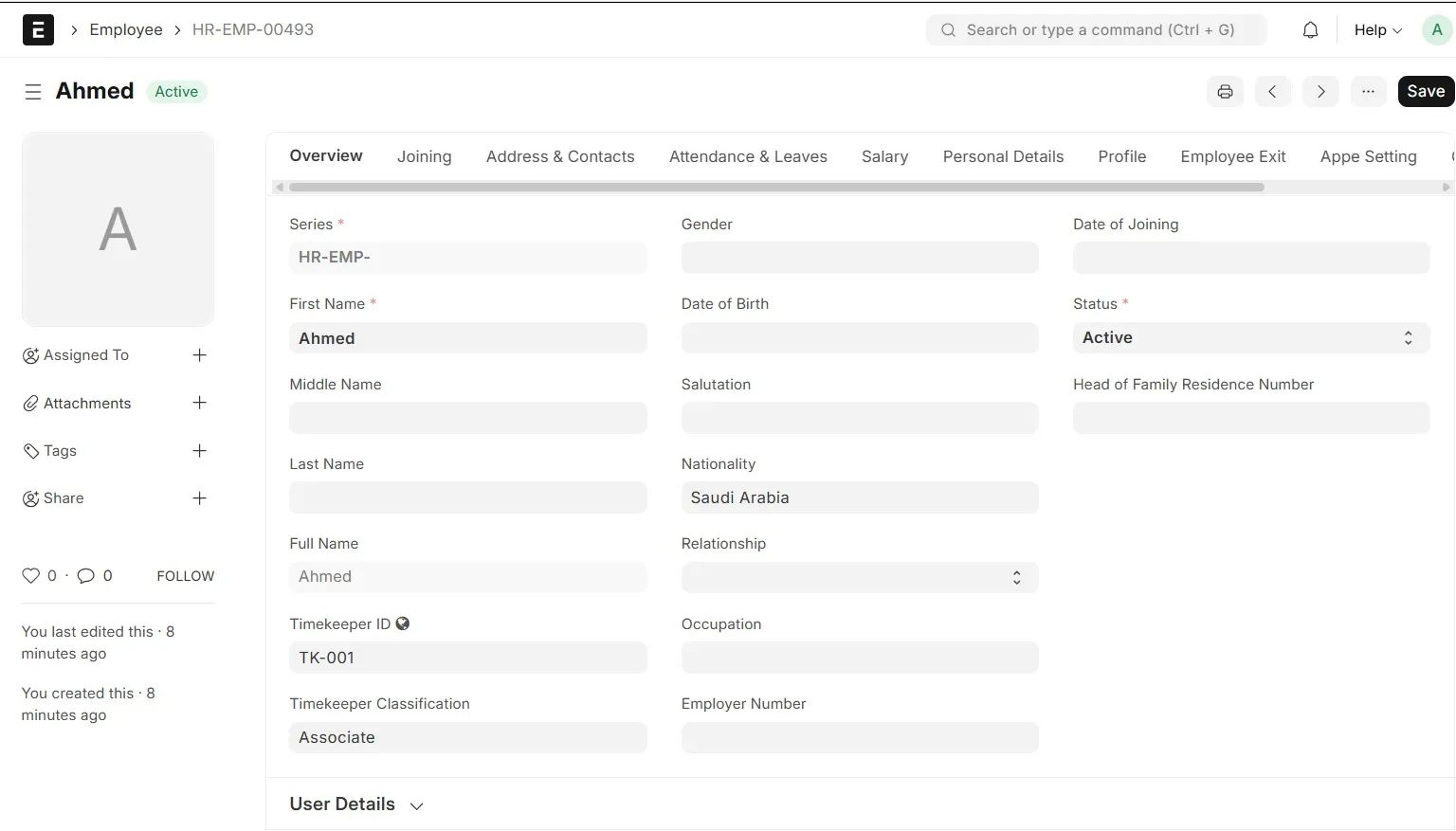 Employee master - Timekeeper ID and classification
3.4 Sales Invoice Header - Invoice and Matter Information
Navigate to: Accounting > Sales Invoice > Open or create the relevant Sales Invoice
The Sales Invoice header contains the primary invoice, matter and billing-period information. One screenshot is used because all of the following LEDES fields are sourced from this screen.
| LEDES field | ERPNext source / meaning | Sample value |
|---|---|---|
| INVOICE_DATE | Posting Date | 04-10-2026 -> 20261004 |
| INVOICE_NUMBER | Sales Invoice document number | ACC-SINV-2026-00036 |
| LAW_FIRM_MATTER_ID | Our Reference | MAT-2026-001 |
| BILLING_START_DATE | Billing Start Date | 01-09-2026 -> 20260901 |
| BILLING_END_DATE | Billing End Date | 30-09-2026 -> 20260930 |
| INVOICE_DESCRIPTION | LEDES Invoice Description | Legal services ... September 2026 |
| CLIENT_MATTER_ID | Your Financial Ref | ABC-MAT-2026-001 |
Related master data: The Customer selected on the Sales Invoice is also used to retrieve CLIENT_ID from the Customer master. CLIENT_ID is therefore not typed separately on the invoice.
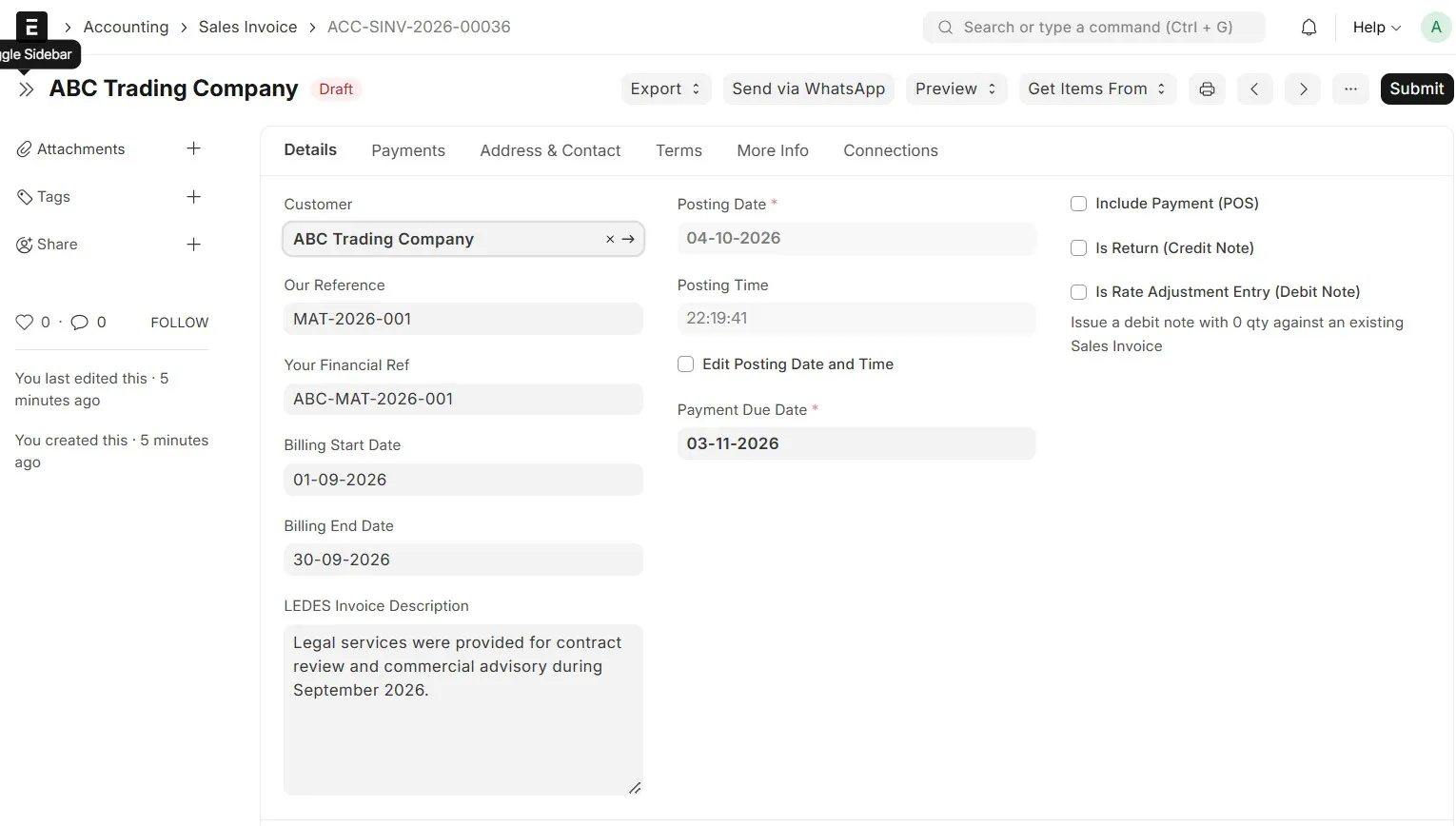 Sales Invoice header fields used by the LEDES export
3.5 Sales Invoice Items - Quantities, Rates and Amounts
Navigate to: Sales Invoice > Items table
The item grid supplies the quantity, unit rate and line amount for each billing row. The Sales Invoice total is exported as the invoice-level total and repeats on each LEDES billing row.
| LEDES field | ERPNext source/meaning | Sample value |
|---|---|---|
| INVOICE_TOTAL | Sales Invoice > Total | 6750.00 |
| LINE_ITEM_NUMBER | Item row number / No. | 1 |
| LINE_ITEM_NUMBER_OF_UNITS | Item > Quantity | 5.00 |
| LINE_ITEM_TOTAL | Item > Amount | 4000.00 |
| LINE_ITEM_UNIT_COST | Item > Rate | 800.00 |
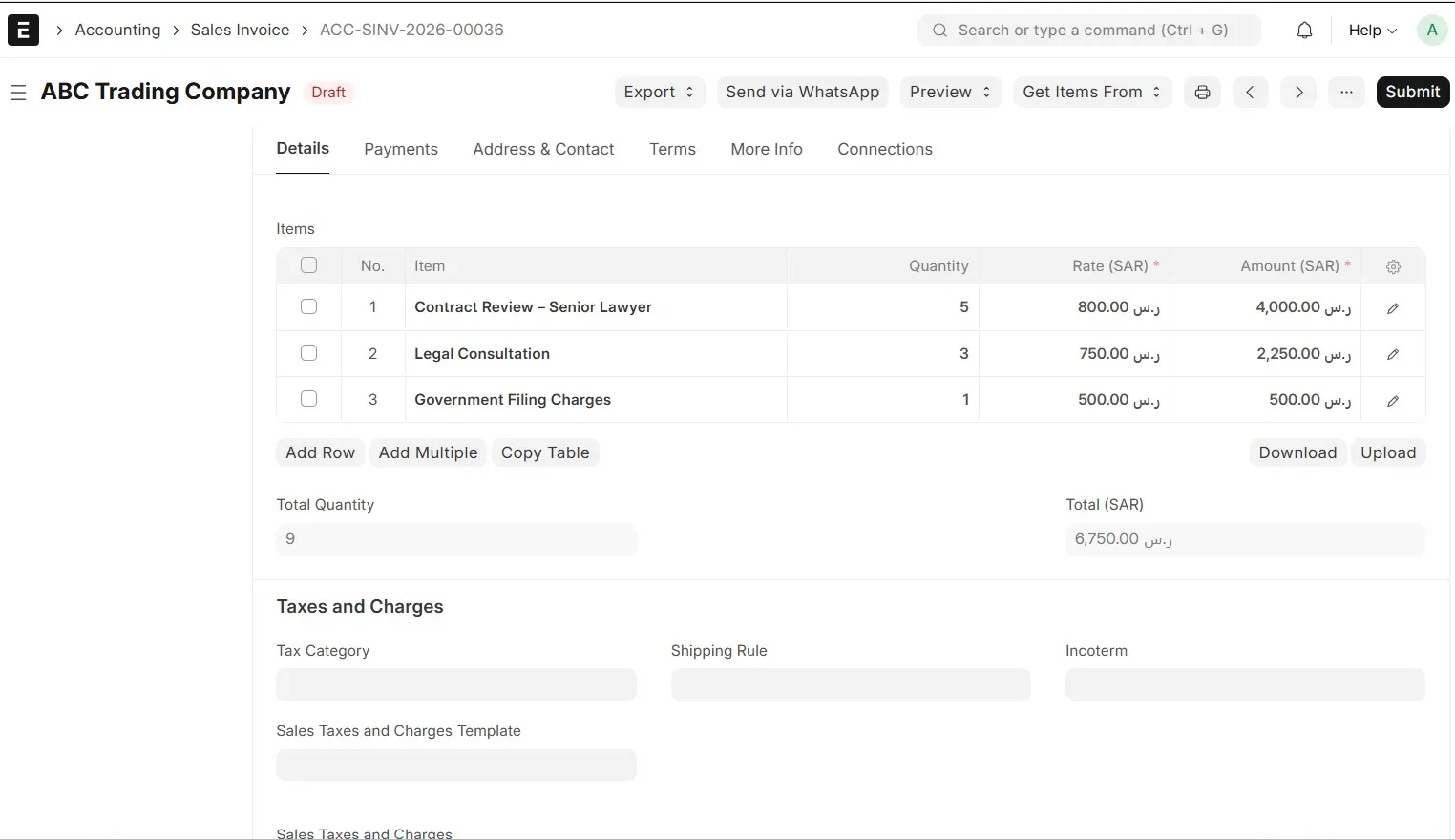 Sales Invoice item grid and invoice total
3.6 Sales Invoice Item Detail - LEDES Line-Level Fields
Navigate to: Sales Invoice > Items table > Click the pencil/edit icon on the relevant item row
Open the item row using the edit icon to maintain the LEDES line-level attributes. The visible screen contains the description, line type, adjustment amount, line date and expense code. Task and activity codes are maintained on the linked Item master and are documented separately in Section 3.7.
| LEDES field | ERPNext source / meaning | Sample value |
|---|---|---|
| EXP/FEE/INV_ADJ_TYPE | Item > LEDES Type | F |
| LINE_ITEM_ADJUSTMENT_AMOUNT | Item > LEDES Adjustment Amount | 0.00 |
| LINE_ITEM_DATE | Item > LEDES Line Date | 04-10-2026 -> 20261004 |
| LINE_ITEM_EXPENSE_CODE | Item > LEDES Expense Code | EXP-001 |
| LINE_ITEM_DESCRIPTION | Item > Description | Contract Review - Senior Lawyer |
Line-type behavior: In the sample output, F is used for fee lines and E is used for expense lines. Enter the expense code when required for the billing line. Task and activity codes are maintained on the Item master as shown in Section 3.7.
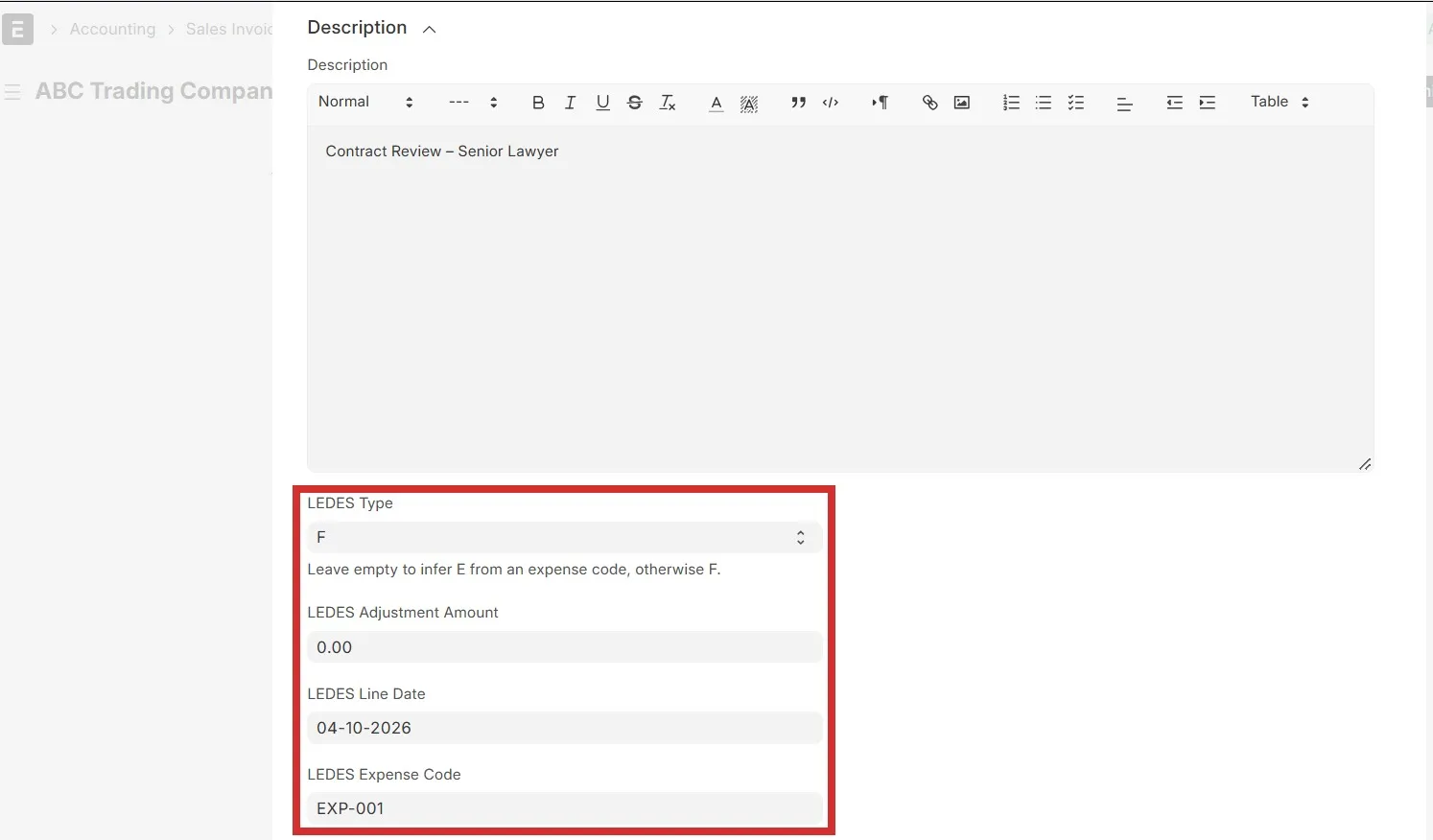 Expanded Sales Invoice Item showing LEDES line-level fields
3.7 Item Master - LEDES Task and Activity Codes
Navigate to: Stock > Item > Open the relevant Item
Maintain the LEDES task and activity codes on the Item master. When the item is used on a Sales Invoice, these values provide the billing codes exported for the corresponding LEDES line. The codes should match the values required by the receiving client or e-billing platform.
| LEDES field | ERPNext source / meaning | Sample value |
|---|---|---|
| LINE_ITEM_TASK_CODE | Item Master > Task Code | TASK-003 |
| LINE_ITEM_ACTIVITY_CODE | Item Master > Activity Code | ACT-003 |
Billing code control: Use the client-approved task and activity codes. Maintaining the values on the Item master keeps the billing-code source consistent for repeated use of the same service item
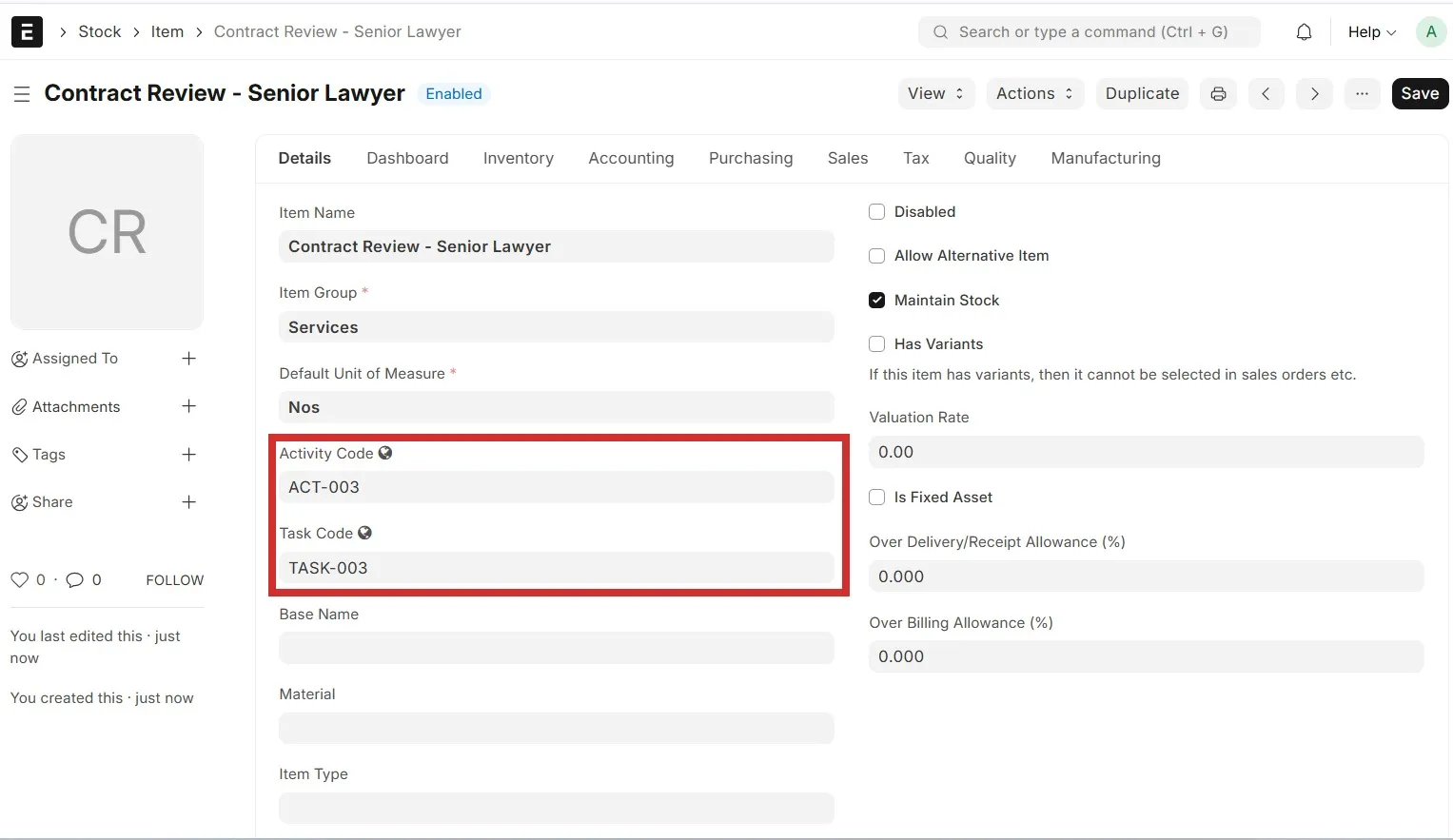 Item master with LEDES Activity Code and Task Code
4. Complete LEDES® 1998B Field Mapping
The exporter writes the following 24 fields in the fixed order shown below. Dates are represented in the generated text file as YYYYMMDD. Invoice-level values repeat across billing rows so that each line remains complete in context.
| # | LEDES field | ERPNext source | Example |
|---|---|---|---|
| 1 | INVOICE_DATE | Sales Invoice - Posting Date | 20261004 |
| 2 | INVOICE_NUMBER | Sales Invoice document number | ACC-SINV-2026-00036 |
| 3 | CLIENT_ID | Customer - LEDES Client ID | ABC-001 |
| 4 | LAW_FIRM_MATTER_ID | Sales Invoice - Our Reference | MAT-2026-001 |
| 5 | INVOICE_TOTAL | Sales Invoice - Total | 6750.00 |
| 6 | BILLING_START_DATE | Sales Invoice - Billing Start Date | 20260901 |
| 7 | BILLING_END_DATE | Sales Invoice - Billing End Date | 20260930 |
| 8 | INVOICE_DESCRIPTION | Sales Invoice - LEDES Invoice Description | Legal services ... |
| 9 | LINE_ITEM_NUMBER | Sales Invoice Item - Row number | 1 |
| 10 | EXP/FEE/INV_ADJ_TYPE | Sales Invoice Item - LEDES Type | F |
| 11 | LINE_ITEM_NUMBER_OF_UNITS | Sales Invoice Item - Quantity | 5.00 |
| 12 | LINE_ITEM_ADJUSTMENT_AMOUNT | Sales Invoice Item - LEDES Adjustment Amount | 0.00 |
| 13 | LINE_ITEM_TOTAL | Sales Invoice Item - Amount | 4000.00 |
| 14 | LINE_ITEM_DATE | Sales Invoice Item - LEDES Line Date | 20261004 |
| 15 | LINE_ITEM_TASK_CODE | Item Master - Task Code | TASK-003 |
| 16 | LINE_ITEM_EXPENSE_CODE | Sales Invoice Item - LEDES Expense Code | EXP-001 |
| 17 | LINE_ITEM_ACTIVITY_CODE | Item Master - Activity Code | ACT-003 |
| 18 | TIMEKEEPER_ID | Employee - Timekeeper ID | TK-001 |
| 19 | LINE_ITEM_DESCRIPTION | Sales Invoice Item - Description | Contract Review - Senior Lawyer |
| 20 | LAW_FIRM_ID | Company - LEDES Law Firm ID | LAW-001 |
| 21 | LINE_ITEM_UNIT_COST | Sales Invoice Item - Rate | 800.00 |
| 22 | TIMEKEEPER_NAME | Employee name | Ahmed |
| 23 | TIMEKEEPER_CLASSIFICATION | Employee - Timekeeper Classification | Associate |
| 24 | CLIENT_MATTER_ID | Sales Invoice - Your Financial Ref | ABC-MAT-2026-001 |
5. Exporting a Sales Invoice
Use the following procedure after the master values, invoice header and item-level LEDES fields have been prepared and reviewed.
5.1 Open the Export menu
From the Sales Invoice header, select Export. The custom legal e-billing action is available from this menu.
 Export control in the Sales Invoice header
5.2 Select Download LEDES.txt
Select Download LEDES.txt. The browser downloads a plain-text file containing the mapped invoice and billing-line information in LEDES® 1998B-compatible field order
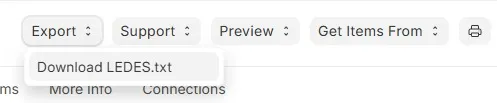 Download LEDES.txt option
6. Validating the Generated LEDES File
The generated output begins with the LEDES1998B format identifier, followed by the 24-field header and the billing rows. Fields are separated by the pipe character | and each record ends with the two-character LEDES row terminator: an opening square bracket immediately followed by a closing square bracket.
• Confirm that the 24 header fields appear in the documented order.
• Confirm that invoice-level identifiers and totals repeat consistently across billing rows.
• Confirm that each billing row contains the correct line number, line type, units, amount, date, billing codes and timekeeper details.
• Confirm that dates are exported as YYYYMMDD (for example, 04-10-2026 becomes 20261004).
• Blank optional values should remain represented by adjacent pipe separators; do not manually remove or reorder separators.
Sample validation: The sample output shows CLIENT_ID = ABC-001, LAW_FIRM_MATTER_ID = MAT-2026-001, LAW_FIRM_ID = LAW-001, TIMEKEEPER_ID = TK-001, TIMEKEEPER_NAME = Ahmed, TIMEKEEPER_CLASSIFICATION = Associate, and CLIENT_MATTER_ID = ABC-MAT-2026-001. The file should always be reconciled against the corresponding ERPNext invoice before submission.
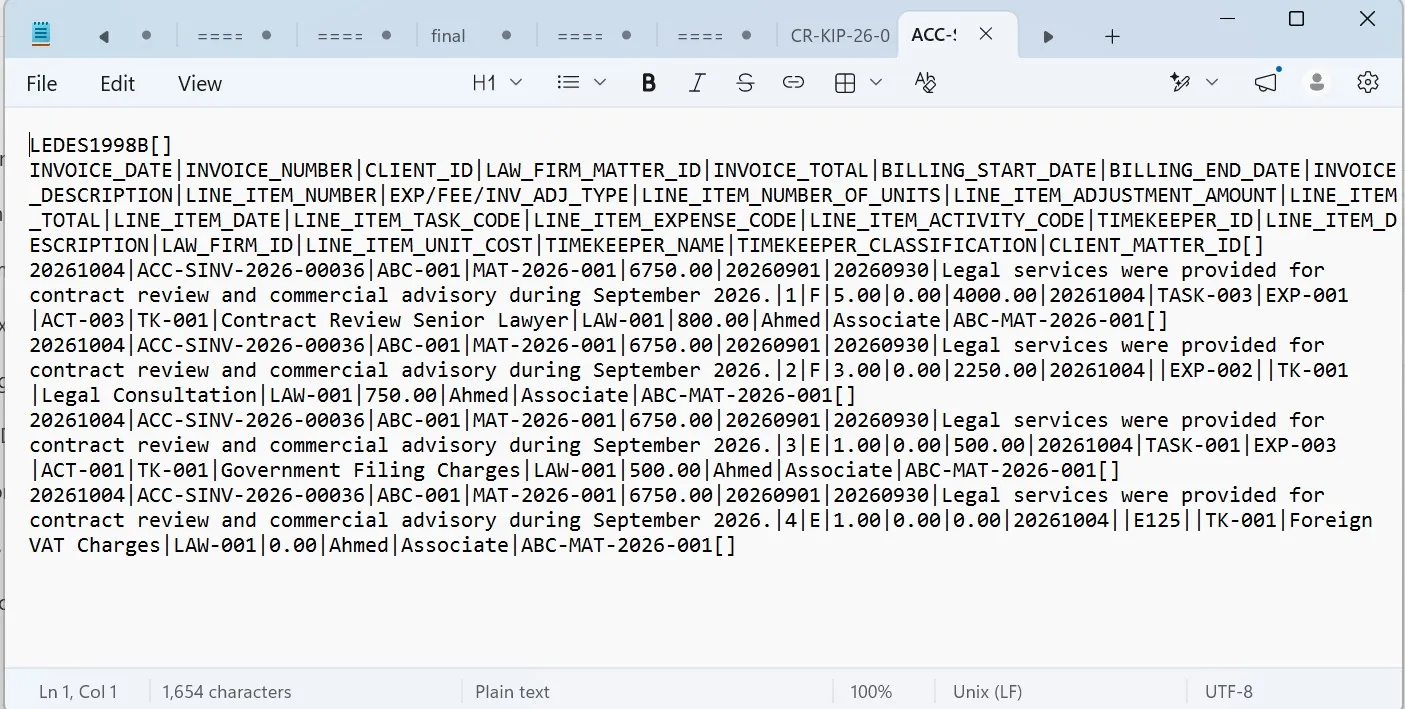 Generated LEDES text file opened in a plain-text editor
7. Validation & Troubleshooting
7.1 Pre-submission checklist
☐ Invoice number and invoice date match the ERPNext Sales Invoice.
☐ CLIENT_ID, LAW_FIRM_MATTER_ID, LAW_FIRM_ID and CLIENT_MATTER_ID match the receiving client requirements.
☐ Invoice total and all line totals reconcile with ERPNext.
☐ Fee, expense and adjustment line types are correct.
☐ Required task, activity and expense codes are populated.
☐ Timekeeper ID, name, classification and rate are complete where required.
☐ Billing period and line-item dates are valid.
☐ Line descriptions comply with the client billing guidelines.
7.2 Common issues
| Issue | Possible reason | Recommended action |
|---|---|---|
| Download option missing | App/feature unavailable or insufficient access. | Confirm app installation and Sales Invoice permissions. |
| Blank fields | Required source data or mapping is missing. | Complete the relevant customer, company, invoice, item or employee data and export again. |
| Portal rejection | Client-specific rule or invalid identifier/code. | Review the portal rejection and compare the exported values with the client billing rules. |
| Amount mismatch | Line values, adjustments, taxes or mapping differ. | Reconcile each exported billing row with the source invoice and configured export logic. |
| Duplicate submission | Invoice was submitted previously. | Check the receiving portal status before resubmitting. |
7.3 Operational recommendations
• Use controlled master data for client IDs, matter IDs, law-firm IDs, billing codes and timekeeper information.
• Keep the ERPNext Sales Invoice number linked to the external submission status for reconciliation and audit.
• Validate at least one sample export against the intended client e-billing platform before production rollout.
• Treat file generation as the start of submission validation, not as final acceptance; the receiving platform may apply additional client-specific checks.
8. Reference
LEDES® 1998B field order and file structure are represented in this guide as implemented by the ERPNext Legal E-Billing Export app. Client-specific e-billing rules may impose additional validation requirements beyond the generated file structure.